
Groups
You can use this app entirely with purely local storage of all data without Internet access. Then nobody sees your own data.
Often, however, one would like to have access to the data together with one or more others in order to manage common shopping lists and stocks together (family, shared flats, etc.). In addition, it is also advisable to have a current data backup on the server.
Groups serve this purpose. You get a shared memory on the server. A group can be formed, and others can be invited to the group to share the data with them. Only by receiving such an invitation and joining the group can you get access to another person's data.
An invitation can only be accepted once by a single person. If you want to invite several people, you have to produce several invitations.
The founder of a group can later remove a participant from the group. Of course, you can also leave a group voluntarily at any time (unless you are the founder -then you can only delete the group). After leaving a group you need a new invitation to join it again.
As long as you don't have the Pro Version of the app, you can only be a member of one group, otherwise up to 30 groups are possible.
A single device in the free version can only be a member of a group that currently has a maximum of one other member (in the free version). With the Pro version, the number of members in a group is unlimited.
Groups are managed with the following page, which opens after calling 'Group' from the options menu of the basic page:
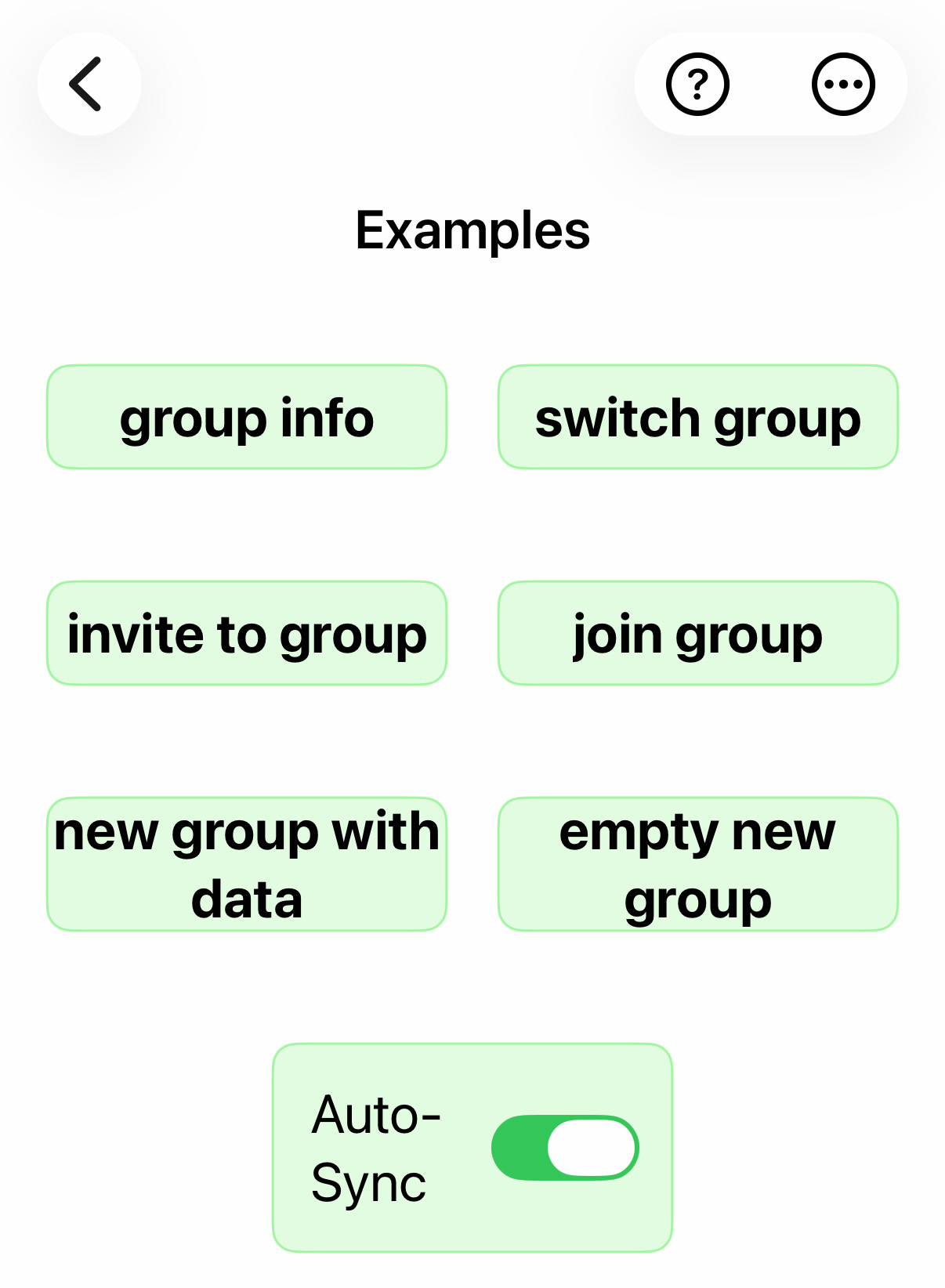
Group-Info
A list of all members of the group is displayed (the group name is in the top line of the display - here 'Examples').
Invite to Group
First you are asked for the member name of the person you want to invite. It doesn't have to be a real name - just a nickname or a first name is enough. The name is only used by the group members to identify each other (must be unique within the group). For example, if a member is to be removed from the group by the founder, this name is given.
The invitation generates a special 6-digit numeric group code, which is then immediately sent to the person to be invited together with the invitation by email or WhatsApp, but can also be communicated verbally. This group code can only be used for a single entry and is valid for a maximum of 1 month from the date of invitation.
new group with data
A new group is formed. As an initial database on the server, it immediately receives the current data of the group founder. The name of the group is first 'founder name group n', but it can be changed at any time afterwards. If no name of the founder is known when founding a group, he will be asked for his name first. Here the same is valid as with the name for an invitation: actually no matter, but it must be a name for the identification of the group members among themselves.
Groups can exist indefinitely. However, if they are not used for more than one year, they are automatically deleted from the server.
swith group
You can be a member of up to 30 groups at the same time (in the Pro Version). With this option you get a list of the groups you are a member of and then you can choose one of them you want to work with in the following.
join group
If you have received an invitation to join, this invitation contains the 6-digit group code. You must enter this group code to join the group. The group will be given the name it was given by the founder in the local area. However, anyone can rename it for themselves. When you join a group for the first time, your own data will be replaced by that of the group.
empty new group
A new group is formed. The initial database is empty. This allows you to create a group that has nothing in common with the previous groups: all categories etc. can be completely different (and must be created again). (These additional groups are only available in the Pro version). If you are not currently in a group (you have never had one or have just deleted a group), you cannot create an empty new group to prevent data loss.
Autosync
If this switch is set (recommended setting), the app tries to synchronize the data each time it reaches the basic menu. Since these are usually very small amounts of data (only changes are transferred), you will hardly notice this. During synchronization, the newest data is used to overwrite older data. This makes it possible to change even a single shopping list with several people at the same time. Each time you reach the basic menu (with AutoSync) or the 'Synchronize' menu item, the latest data is reassembled on the server.
Synchronization always takes place via the server as an intermediate station. This offset via the server must be taken into account when checking your procedure. In normal operation, you will not notice the offset at all, but you may notice it when performing a targeted check.
Here is the procedure for synchronization using an example:
- Cell phone 1 changes data
- Cell phone 2 changes data
- Cell phone 1 synchronized - now the server has the changed data from cell phone 1
- Cell phone 2 synchronized - now the server has the changed data from cell phone 2 and cell phone 2 has the changed data from cell phone 1.
- Cell phone 1 synchronizes again—now cell phone 1 also has the changed data from cell phone 2.
When verifying synchronization, always take this offset via the server into account, as well as the fact that synchronization only occurs when the main menu is called up or when reverting to the main menu (or when synchronizing manually via a menu selection).
Press  to open the options menu, which offers additional, less frequently used operations:
synchronization can be activated at any time: this is for immediate synchronization, so it is especially necessary from time to time if the 'Auto-Sync' switch is switched off (not recommended).
rename group is used to give the group a different name. If you are not the founder of the group, this renaming applies only to your own overview. Otherwise it will be renamed globally and new members will be assigned the new name.
Set group logo is used to assign a photo to the group. If you are currently in a group that has a group logo, this group logo will be displayed on the start page instead of the stylized broccoli, so that when you are working with several groups, you can immediately see which group you are currently in. The group logo only applies to your own device, so it is not synchronized.
download from serverDownloads the entire data set of the group from the server and saves it locally, ignoring all changes made since the last synchronization within the group. If, contrary to expectations, some data is missing from a mobile phone due to certain activities (e.g., premature termination of synchronization), this allows you to transfer the complete current data set from the server back to the mobile phone. The same applies if the local memory has been damaged by a minor mobile phone crash: this can always be easily remedied by downloading from the server.
leave the group is used to leave the current group. You keep the current dataset, but can no longer synchronize it with the server. However, you can use it to create your own group with this dataset as initial content (the group founder cannot leave the group).
remove member requests the name of the group member to be removed from the group (for group founders only).
eigenen Namen ändern allows you to change your own name for future groups (in existing groups, the previous name remains unchanged).
delete group deletes the entire group (for group founders only).
Invite new owner to the group is used to invite another member to the group and make that member the new owner of the group. When you do this, you lose your ownership rights as the person who sent the invitation. This feature is mainly used to reestablish yourself as the group owner when you switch to a new phone.
You should make a note of the group access code. Even if you lose your cell phone or it breaks, you can easily regain access to your group through it.