
Configuration
Under the menu item 'Configuration', you can define the structures that should be available for pop-up menus when editing products, etc.
A selection pop-up menu appears:

The configuration of categories serves as an example here—the procedure is identical for the others (eating places/storage locations/shopping lists/markings):
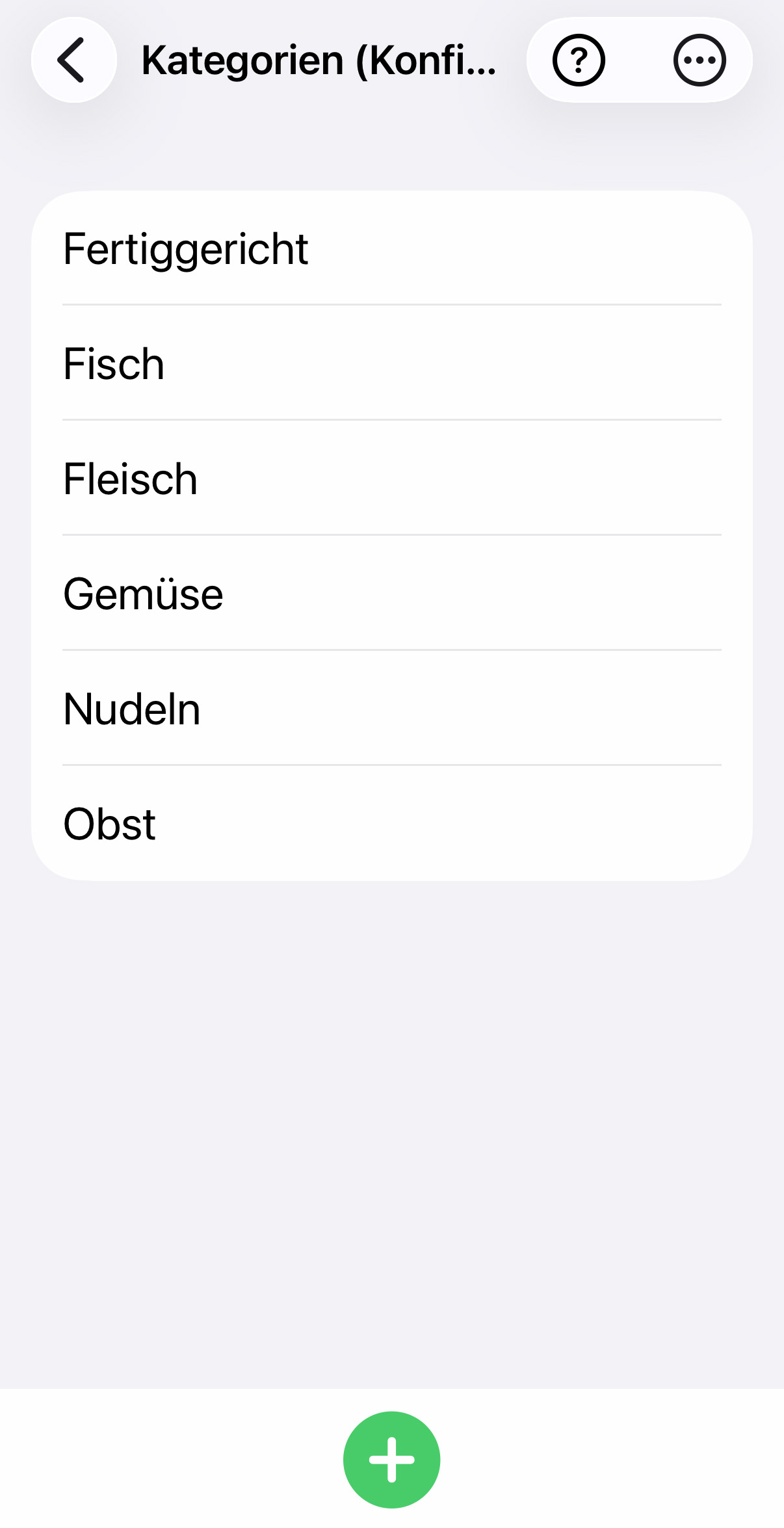
This is just an example configuration—everyone is free to design their own categories and subcategories (separately for each group, if you are using multiple groups).
With the button  A new category can be created. A category can be deleted by swiping it to the left. For security reasons, a red "Delete" button with a trash can icon will appear, which must be confirmed to delete.
When an existing category is selected, a window opens for editing the category or its subcategories, in this case the category 'Fleisch':
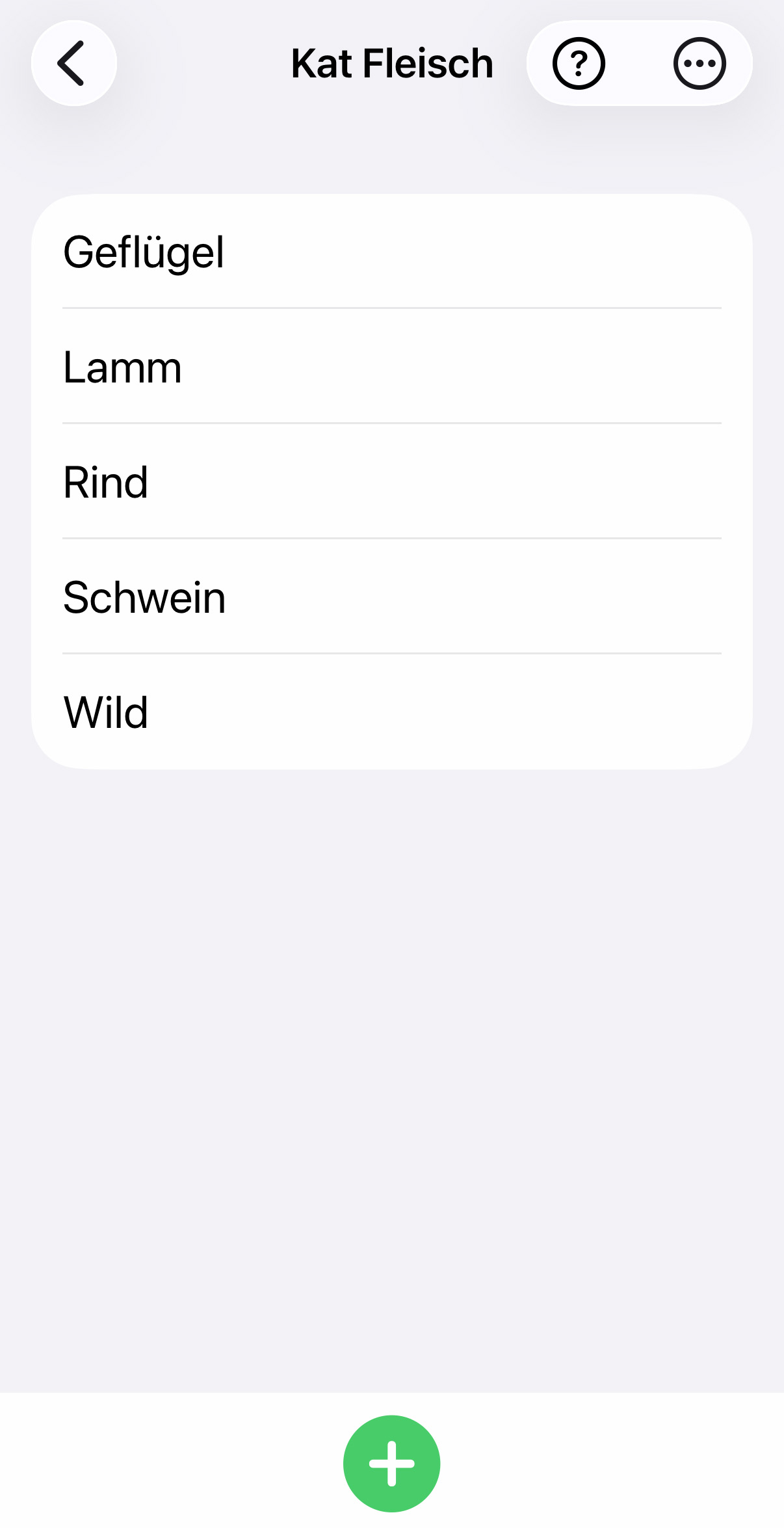
For new categories, the name of the new category must first be entered in a dialog box.
After that, you can use the to create a new subcategory, and its name is then requested.
The same applies here: if you want to delete a subcategory, swipe it to the left and the red delete trash can will appear for confirmation.
Since the names will later be displayed in pop-up menus, it is advisable not to make the names too long for better readability. If there is not enough space in the corresponding pop-up menu for all elements, you can scroll through it. Categories and subcategories
How this menu with the submenu is then displayed, can be seen here.
Under "Markes" in the configuration, you can edit a list of values that can be used as markers to identify individual products/inventory items.
Under 'Additional fields' in the configuration, you can define your own additional fields.
As a special case of the configuration for a shopping list there is a menu option called 'Set category order'.
This allows you to define a shopping list with the same name for each place of purchase (~ store), in which the items can then be sorted in a specific order that suits the store:
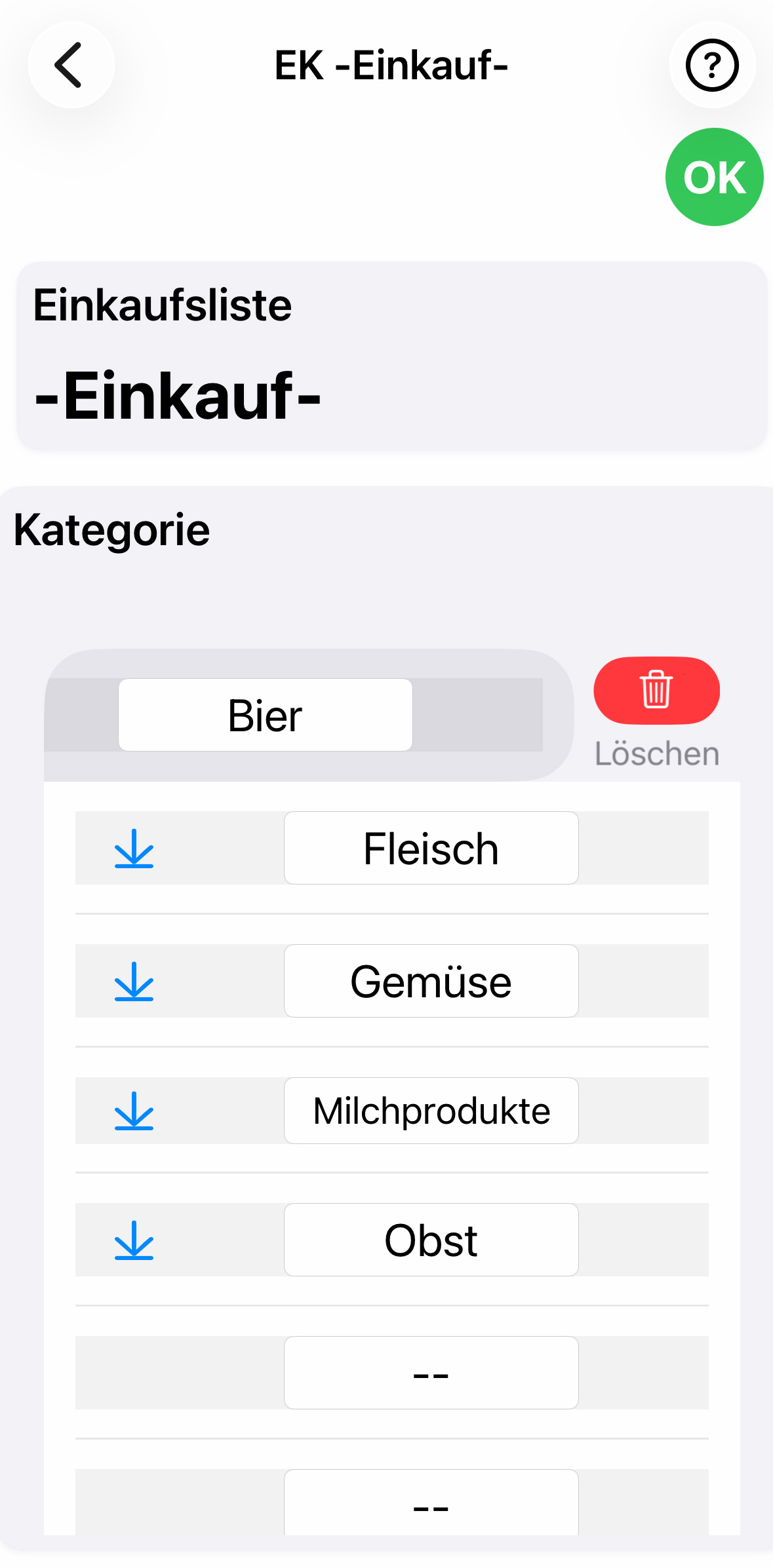
This means that a processing sequence in the store can be determined based on the item categories. Both categories and supercategories can be elements of the sorting sequence. A supercategory includes all subcategories that do not have their own element.
By clicking on  From here on, all elements are moved down one line to make room for another.
Swiping left (here in the example at 'Beer') brings up the red trash can for confirmation.
A category order is only stored when you click on 
Global renaming in the configuration is handled via the following mask:
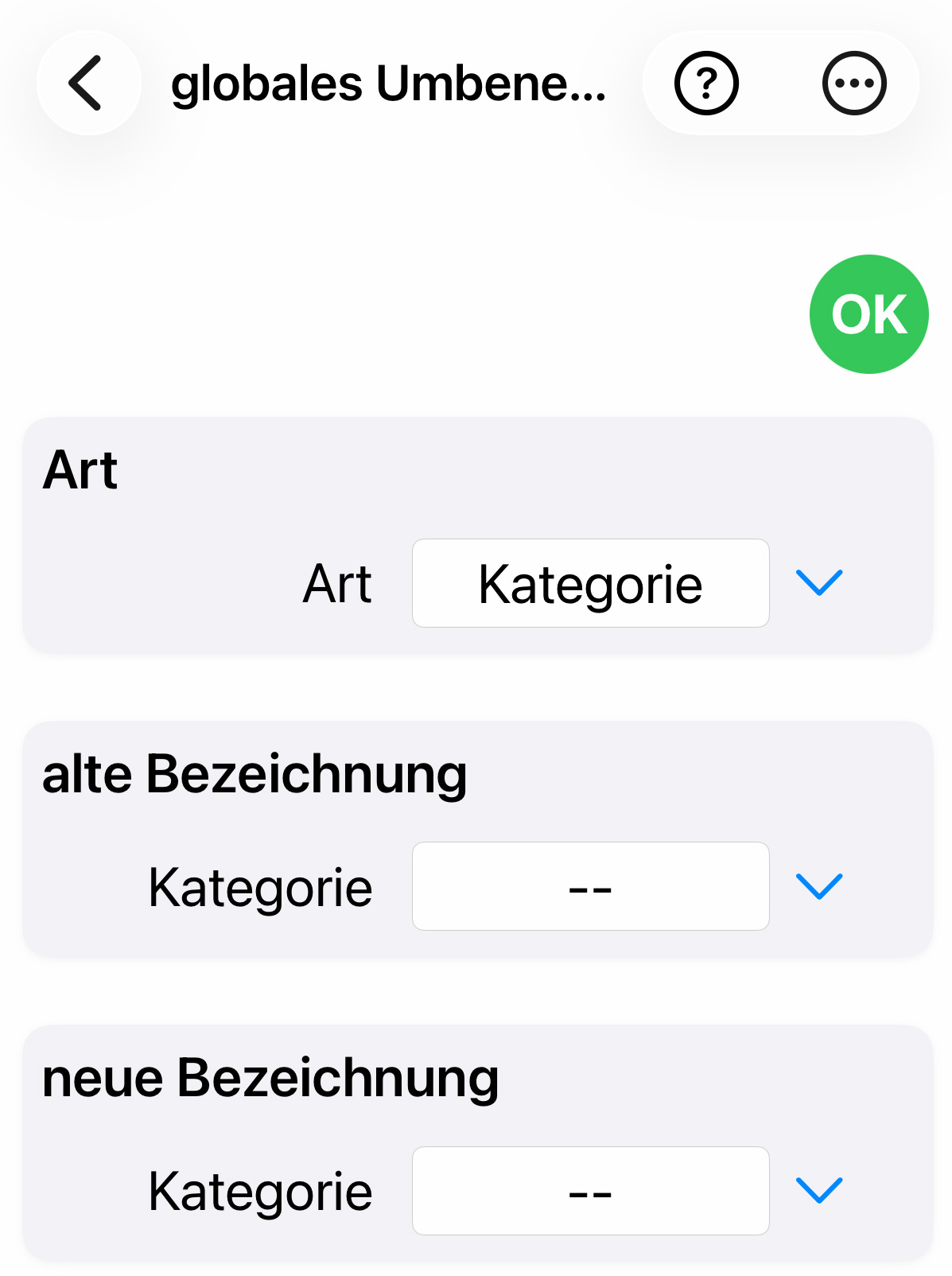
First, use the first button to select what you want to rename: Category / Storage location / Place of purchase / Shopping list (in this example, 'Category' is selected).
Then you can enter the old and new names. To make it easier to spell correctly, you can preselect the names using the pop-up selection button.
The change is made (in all inventories and products) by pressing .
The list structure can be used to define how the tabular lists should look if you prefer them to the continuous text lists of stocks/products.
This is done using the following mask:
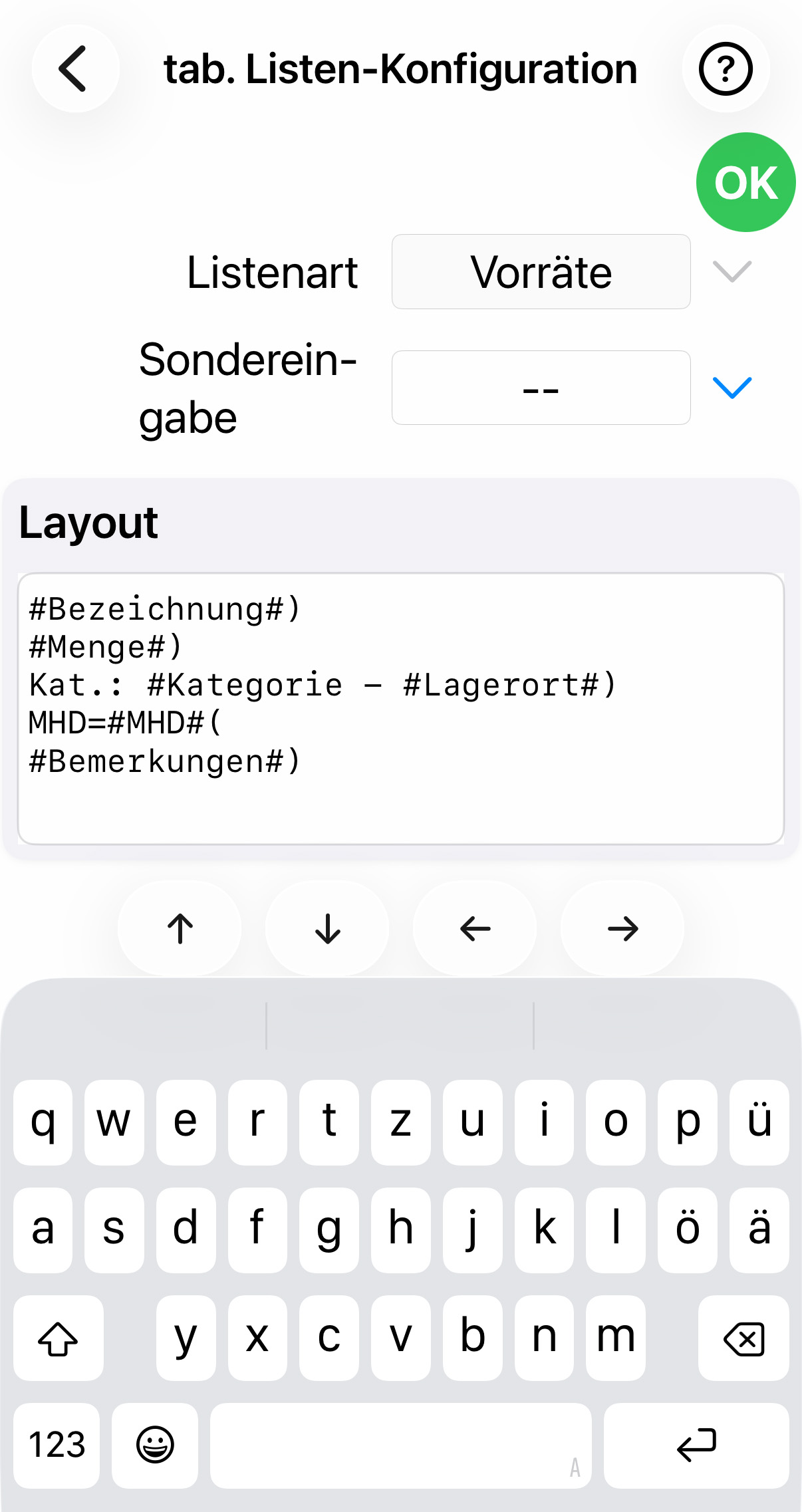
Under List type, you can specify the desired list whose structure is to be defined—in this case, "Inventory."
Under Layout, you can then describe the list structure. Specifically, this is described here. Under 'Special Input', you can select special elements that are not just normal text and automatically insert them at the current cursor position in the layout field without having to type them in. These include both field placeholders and some control elements.