
Menu structure
The app's start screen is the central hub to which all other submenus and program parts return after they have finished. It therefore also has the task of always performing the synchronization process first when auto-sync is enabled—both when the app is started and when returning from another program component (if you are editing shared data in a group or operating a group on your own for backup reasons):
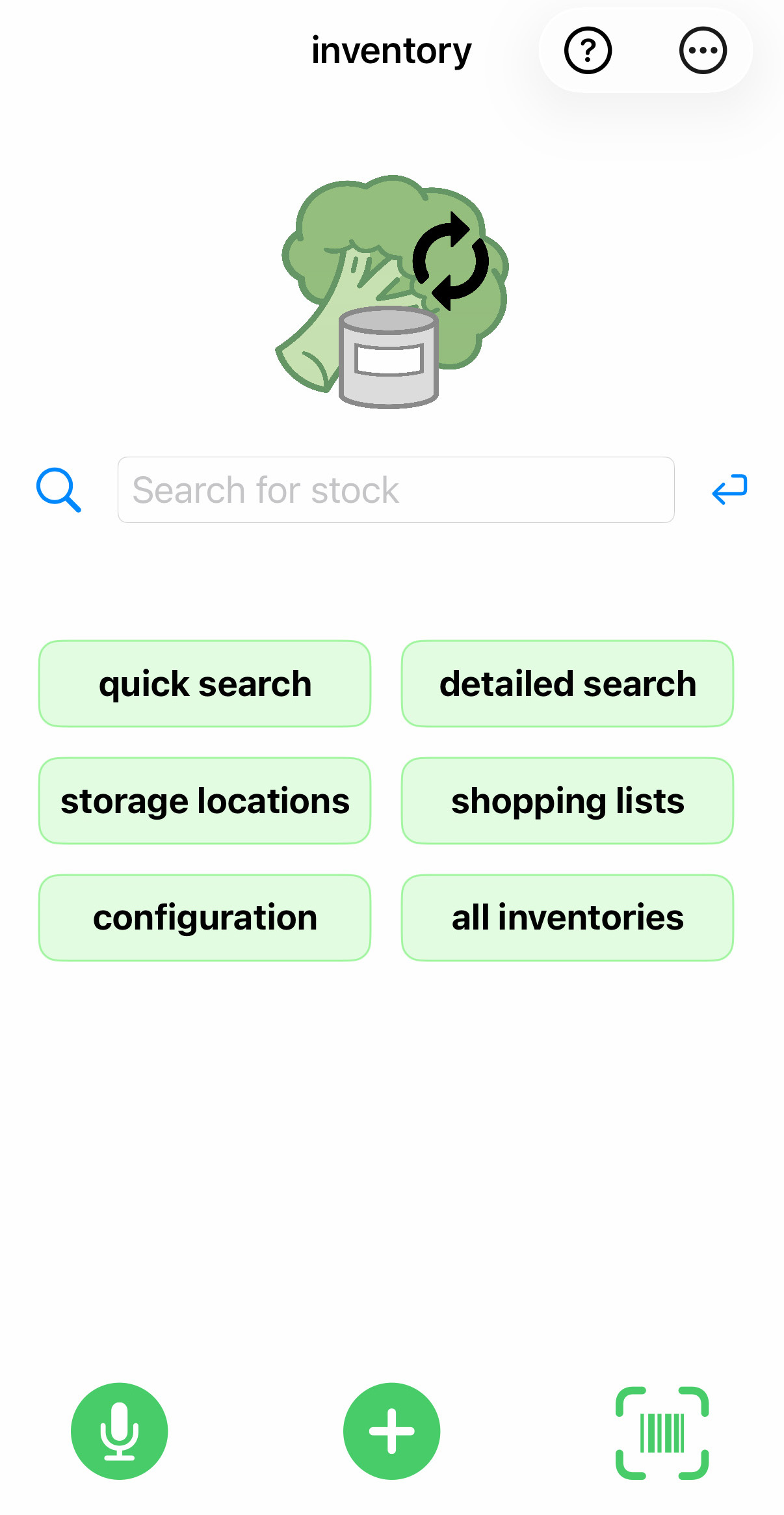
In the "Search inventory" field, you can enter the (partial) name of an inventory to search for and edit it immediately.
The button  creates a new stock that can be used later, e.g., for shopping lists, etc. This selection point is used for quick access to additional products.
The  button starts voice input for searching for a product or for entering a new product if the one you are looking for does not yet exist. This is the fastest way to enter several products in quick succession. In the settings, you can specify whether voice input should be used to search for a product or for a stock item.
The  button launches the barcode scanner to create a new inventory or search for an existing one.
Clicking on the broccoli image at the top immediately starts a synchronization process if you are in a group and reports back whether it was successful. The stylized broccoli can be replaced with your own group-specific photo if desired.
Start buttons
The start buttons shown here are the default settings. Under Settings, you can customize the list of visible start buttons yourself, making the items you use frequently accessible on the start page. All others are then placed in the menu.
The'All stocks' button provides a sorted list of all stocks that are stored. From these, one can then be selected, a restrictive search string can be entered, or a new stock can be added.
The'Storage locations' button displays a sorted list of all defined storage locations. From this list, you can then select a storage location whose contents you want to display. If the storage location has a small arrow on the right-hand side (here, for example, 'Freezer cabinet'), it contains sub-storage locations, which can be selected from a menu by clicking on the storage location:
|
Storage location
 |
The same applies to the'Purchase location' and'Categories' buttons.
The 'Shopping lists' button provides a sorted list of all existing shopping lists, with the number of products in each list shown in brackets. When one of these is selected (as with the storage location, possibly in two steps), the contents of the respective shopping list are displayed.
The 'Quick search' button displays a menu from which the respective search action can be selected:
Depending on the search action, the corresponding list of matching products or stocks is then displayed.
The 'Detailed search' button is used to perform adetailed search based on several combined criteria:
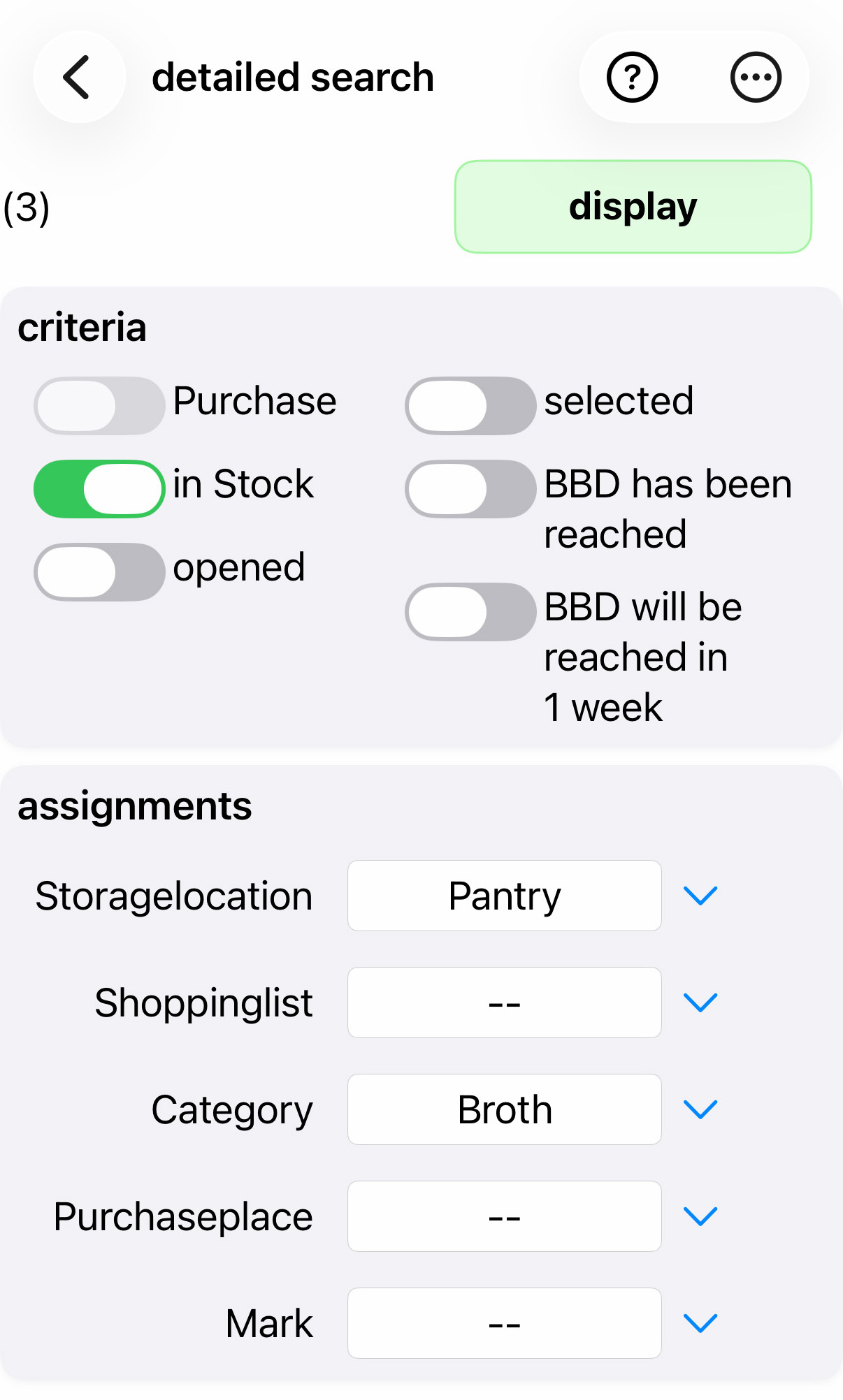
After clicking on 'Display', the matching items that meet all the specified search criteria are displayed. If 'In stock' was checked, the matching stocks are displayed, otherwise the matching products.
If the selection function is activated in the settings, there is also a 'selected' checkbox here, which can be used to limit the matching items to the selected items.
For example, if the 'Category' button is used to search for a specific category that contains subcategories, the submenu belonging to that category appears (here, for example, the Meat category):
|
Category
|
If you click on the generic term (i.e., "meat") here, the search will not be limited to a specific subcategory, but will include all subcategories belonging to that category, i.e., it will search for "any meat."
The blue cross at the top right of the menus is used to cancel the selection, especially when 'Voice over' is active. Otherwise, you can also cancel such a menu by clicking outside the menu.
The 'Configuration' button displays a menu for selecting the desired configuration type:
During configuration, individual elements or sub-elements can be added, renamed, or deleted for purchase locations, storage locations, categories, or shopping lists.
Global renaming is useful for renaming categories, storage locations, etc. at a later date when stocks are already in place.
Toolbar buttons
The  selection item at the top right displays concise offline help on all pages. It also contains a button that leads to detailed online help if required.
The FAQ button at the bottom left allows you to quickly access the comprehensive FAQ.
The menu selection  at the top right shows additional menu options, for example, on the start page:
The 'About' menu item displays a brief description of the current app version and a unique ID, which is usually required when submitting a support request to support@sebag.de.
Main menu
The 'Settings' menu item takes you to the global settings of the app.
With 'Purchase location reached', a purchase location can be specified, which is then used for all operations in which no explicit purchase location is specified, in order to simplify the process.
The 'Group' selection point branches to the part of the program that contains the management of one or more groups, which is also used to define synchronization.
With 'Mass change', a list of all selected stocks/products can be edited at once. This selection is only available if it has been enabled in the settings.
With 'All Products', a list of all stored products (as opposed to stocks) can be called up.
The options available in the menu depend on the respective settings. For example, if the settings specify that 'All Products' is activated in the start buttons, this option will not be listed again in the menu. In addition, you can also hide certain options from any menus that you do not need in the settings.
For example, the 'Purchase Pro Version Subscription' option is no longer displayed if you already have a subscription.
The 'Brochures' item is only displayed if you are working in German or with a German country setting, because only then can brochures be displayed in a meaningful way.