
Detailed search
The 'Detailed search' function is used to perform a detailed search based on several combined criteria:
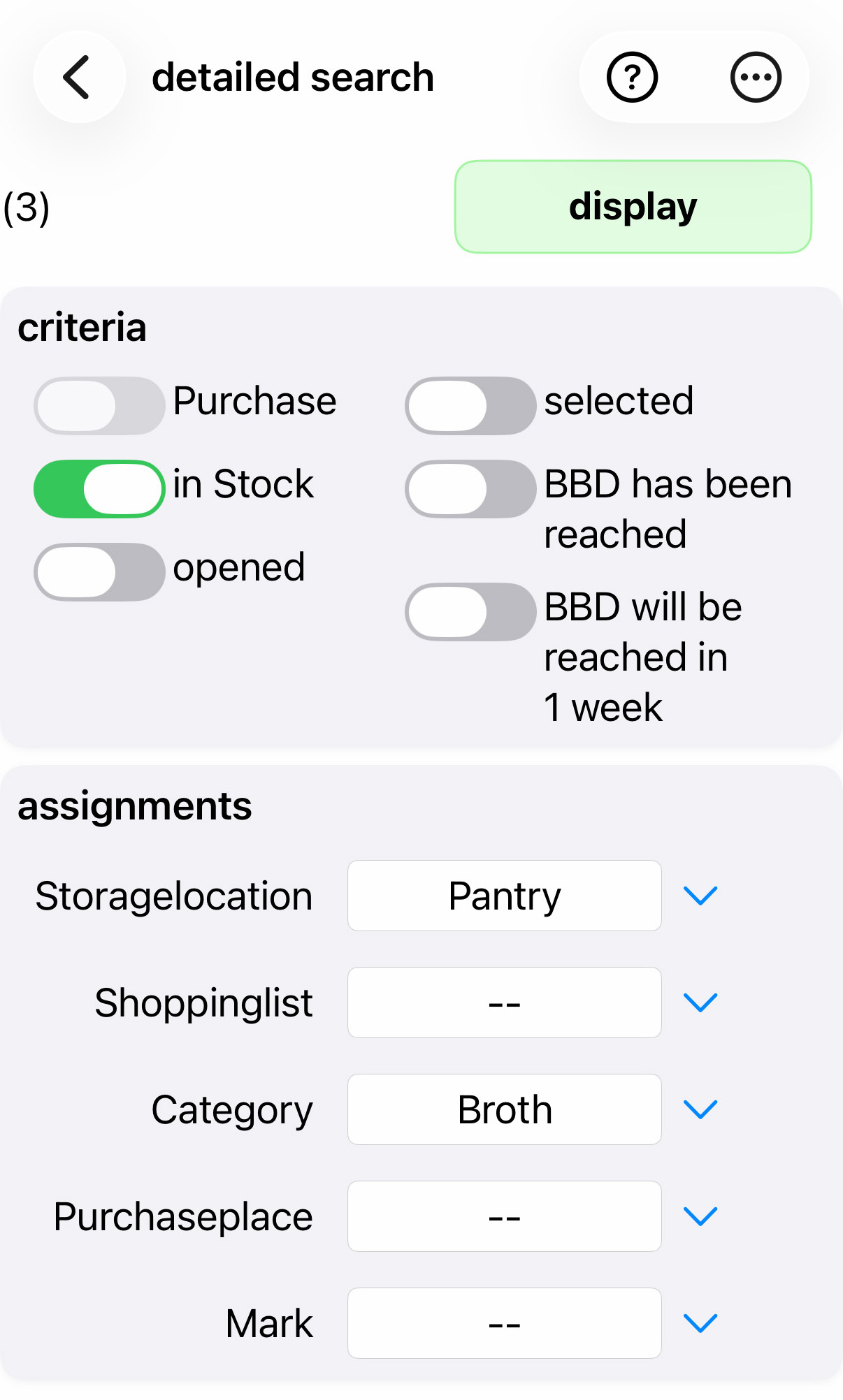
After clicking on 'Display', the matching items that meet all the specified search criteria are displayed. If 'In stock' was checked, the matching items are displayed, otherwise the matching products are displayed.
If the selection function is activated in the settings, there is also a 'selected' checkbox here, which can be used to limit the matching items to the selected items.
For example, if the 'Category' button is used to search for a specific category that contains subcategories, the submenu belonging to that category appears (here, for example, the category Meat):
|
Category
 |
If you now click on the generic term, in this example 'Meat', the search will not be limited to a specific subcategory, but will include all subcategories belonging to the category, i.e., it will search for 'any meat'.
For the Pro version:
The detailed search menu offers additional controls that allow you to combine several search functions, automatically activate the selection, and generate a selection:
- New selection deletes any existing selection and creates a new one from the items found.
- Expand selection adds the newly found products/stocks to those already selected
- Restrict selection leaves only the items found in the already selected items
- Remove from selection removes the newly found items from those already selected.
- Mass change starts the mass change directly with the current selection.
The search is performed immediately, and the number of currently selected items is displayed in brackets at the top left, but the list of items found is not displayed immediately. This allows you to perform another search directly and expand or restrict the items found.
When one of these menu items is selected, the 'selected' checkbox is also automatically checked for further searches. Pressing 'display' then shows the list of selected items.
Example: you are searching for all stocks that either have the storage location 'wine rack' or the category 'wine':
- Set storage location 'Wine rack' -> Menu -> 'New selection'
- Set storage location '--', Set category 'Wine' -> Menu -> 'Expand selection'
With this selection, you can not only search, but also directly bulk editing .
If you have purchased the option for additional fields, you can use additional search functions .
Under Field name for text search, you can use the drop-down list to select one of the field names whose field content you want to include in the search. There are a few special features that go beyond normal searching:
- For selection fields such as the storage location, partial terms can be searched for here (so if you have storage locations such as 'cellar shelf', 'kitchen shelf', etc., you can also search for 'shelf' here.
- Partial terms can also be searched for in 'Description' and 'Comments'
- All defined additional fields can also be used to search for partial terms. The content '*' means 'any content in the field' in the search. If the search string begins with a '!', an exact search is performed instead of the usual abbreviated search.
- Numeric fields such as 'Price', 'Quantity', 'Number', 'Best before date', 'Minimum stock', etc., as well as additional fields defined as numeric fields or dates, can be searched for numerical content in addition to textual searches for complete content. To do this, the first character of the search must be '<', '=' or '>'. The contents are then compared numerically during the search. In the 'Price' field, the search value '<1.5' means searching for stock whose price is less than 1.50. When comparing numbers, it does not matter whether the notation is stored with a decimal point and decimal places or not (therefore, the specification '=1' may be different from just '1', as the latter only performs complete text comparisons). In number searches, character strings following the number (e.g., the unit in 'Quantity') are ignored. The entry '=0' would find '0', '0.0', and an empty field.
Example: you are searching for a stock item from the 'Wine' category that does not have the partial term 'sour' in the comment field:
- Set category 'Wine' -> Menu -> 'New selection'
- Set category '--', set field name 'Comments', field content = 'sour' -> Menu -> 'Remove from selection'
Example: You are looking for a stock item from the categories 'Red wine' or 'White wine' whose vintage is older than 2010:
- Set field name 'Category', field content = 'wine' -> Menu -> 'New selection'
- Set field name additional field 'Vintage', field content = '<2010' -> Menu -> 'Restrict selection'