 -
-
Mass processing
In the Pro version, you can always use the settings to enable or disable a selection mechanism. When enabled, this mechanism displays a selection checkbox in front of each item in a stock or product list, which can be used to select the respective item.
Elements selected using this checkbox remain selected for the entire duration of the Stock Manager session—regardless of which program sections are called up in the meantime. However, the mechanism is purely local and is not synchronized, so that each user can make selections independently of other users. The selection is deleted when the app is closed or when switching to another group.
With the group extension of the collections (subject to a fee), you can also assign names to selections and save them permanently. These collections are also synchronized.
This allows you to "collect" supplies and products from several different parts of the app one after the other, which can then be processed together later. The selections of supplies and products are independent of each other and can be processed separately.
It is possible to use the menu (select 'Selection') to select all items in a currently visible list, deselect them, or reverse all selections. You can also display a list of all selected items (via 'Detailed search' - 'Selected').
Examples of applications for this are:
- Move all inventory from one storage location to another, with a few exceptions:
- Show storage location
- select all
- Use the checkboxes to exclude some items from the selection.
- Change the storage location for all items using mass processing
- Assign some products from certain categories to a different target shopping list:
- Display products in the desired category
- Select specific products using the checkboxes.
- Show next category
- Select additional products using the checkboxes.
- ...
- Change the shopping list for everyone using bulk editing
- Delete some supplies that were taken completely in one go.
- Display supplies and select them individually using the checkboxes
- Delete all stocks via mass editing
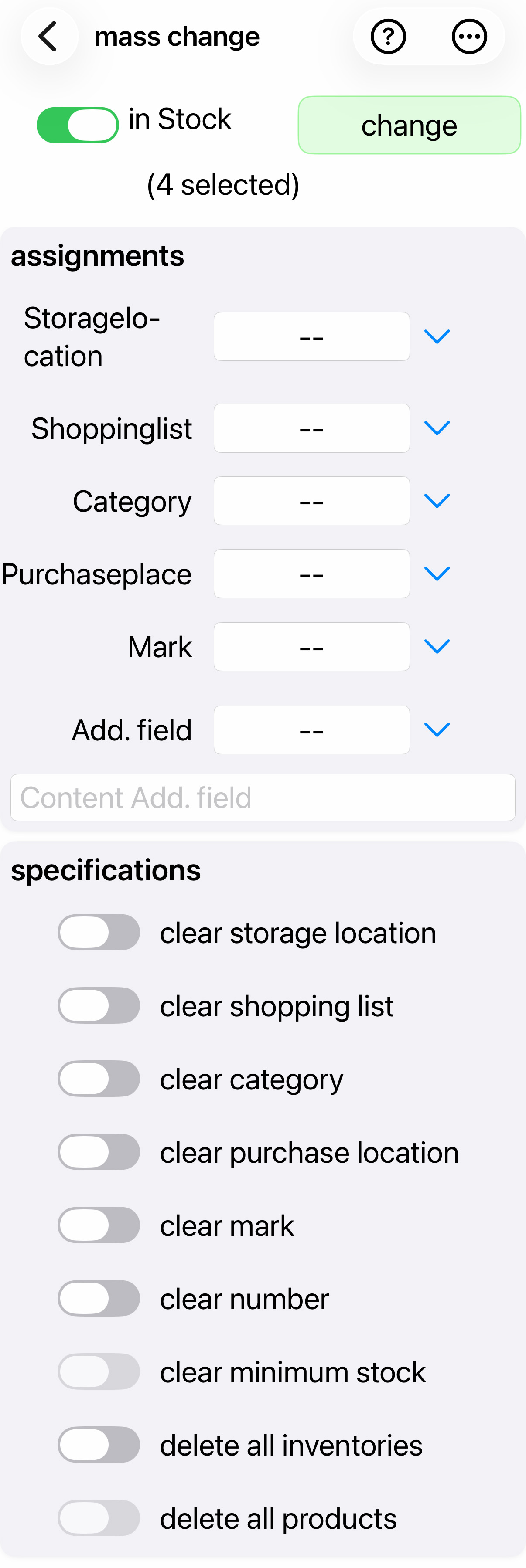
The processing itself is done as follows: